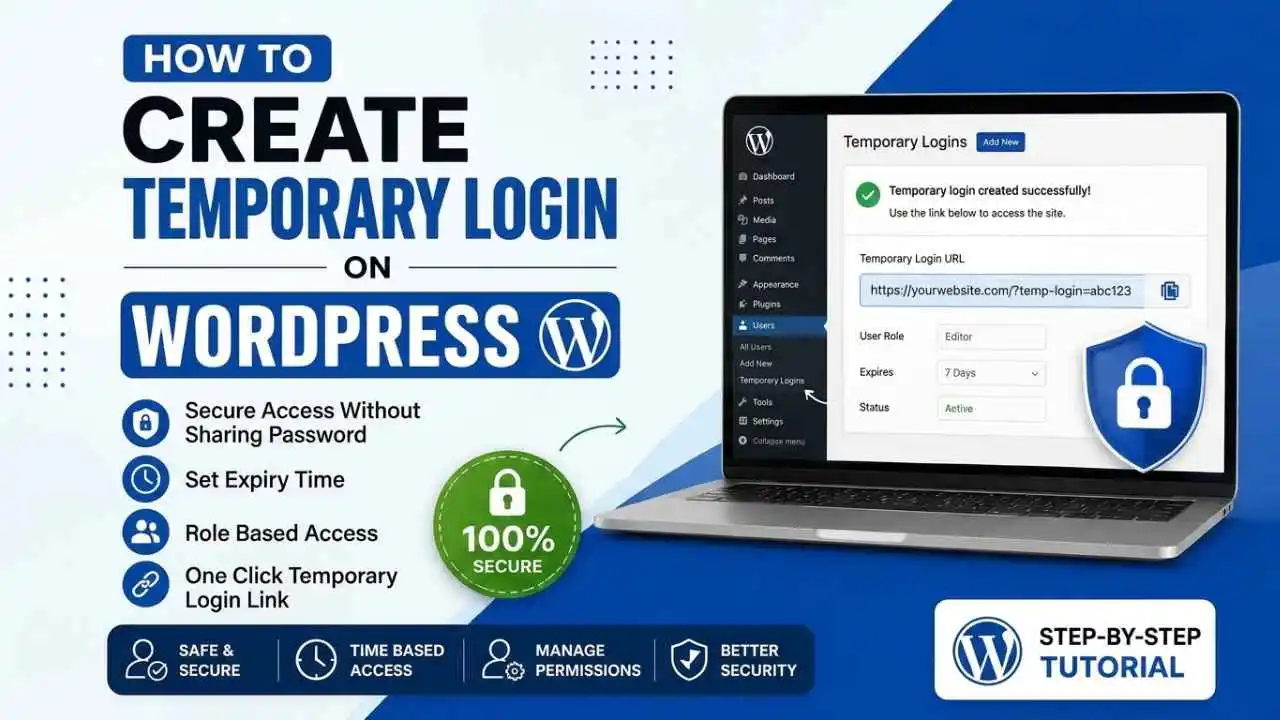
Sometimes you need to give WordPress access to a developer, designer, support team, or plugin provider without sharing your main admin password. In such cases, creating a temporary login is the safest solution.
A temporary login allows limited-time access to your WordPress website without revealing your personal credentials.How to Create Temporary Login on WordPress
In this guide, you’ll learn how to create a temporary login in WordPress easily and securely.
Benefits of Temporary Login
No Password Sharing
- You never need to share your admin password.
Auto Expiry
- Access automatically expires after selected time.
Better Security
- Safer than permanent admin accounts.
Easy Access Management
- Delete access anytime.
Best Plugin to Create Temporary Login
One of the most popular plugins is:
Temporary Login Without Password
This plugin allows users to login without a password using a secure temporary link.
How to Install Temporary Login Plugin
Step 1 – Login to WordPress Dashboard
Open your WordPress Admin Panel:
yourwebsite.com/wp-adminStep 2 – Install Plugin
Go to:
Plugins → Add NewSearch for:
Temporary Login Without PasswordInstall Now → ActivateHow to Create Temporary Login Access
Step 3 – Open Temporary Logins
Users → Temporary LoginsCreate NewStep 4 – Enter User Details
Now fill in:
- Email Address
- First Name
- Last Name
- User Role
Example roles:
- Administrator
- Editor
- Author
- Shop Manager
Step 5 – Set Expiry Time
Choose how long the login should work.
Examples:
- 1 Day
- 1 Week
- 1 Month
- Custom Expiry
After expiration, access will automatically stop.
Step 6 – Generate Temporary Login Link
Click:
SubmitThe plugin will generate a secure login URL.
Example:
https://yourwebsite.com/?temp-login=xyz123Share this link with the developer or support team.
Recommended User Roles
| Role | Access Level |
|---|---|
| Administrator | Full Access |
| Editor | Content Management |
| Author | Post Writing |
| Shop Manager | WooCommerce Access |
How to Delete Temporary Login
Go to: Users → Temporary LoginsClick: DeleteThe login link will stop working immediately.
How to Create Temporary Login on WordPress (Step-by-Step Guide)
Sometimes you need to give WordPress access to a developer, designer, support team, or plugin provider without sharing your main admin password. In such cases, creating a temporary login is the safest solution.
A temporary login allows limited-time access to your WordPress website without revealing your personal credentials.
In this guide, you’ll learn how to create a temporary login in WordPress easily and securely.
Why Create a Temporary Login in WordPress?
Temporary login access is useful when:
- Hiring a developer
- Giving support access
- Troubleshooting plugin issues
- Allowing client previews
- Sharing admin access securely
- Working with freelancers or agencies
Instead of sharing your main admin account, you can create a temporary user that automatically expires later.
Best Plugin to Create Temporary Login
One of the most popular plugins is:
Temporary Login Without Password
This plugin allows users to login without a password using a secure temporary link.
How to Install Temporary Login Plugin
Step 1 – Login to WordPress Dashboard
Open your WordPress Admin Panel:
yourwebsite.com/wp-admin
Step 2 – Install Plugin
Go to:
Plugins → Add New
Search for:
Temporary Login Without Password
Click:
Install Now → Activate
How to Create Temporary Login Access
Step 3 – Open Temporary Logins
After activation, go to:
Users → Temporary Logins
Click:
Create New
Step 4 – Enter User Details
Now fill in:
- Email Address
- First Name
- Last Name
- User Role
Example roles:
- Administrator
- Editor
- Author
- Shop Manager
Step 5 – Set Expiry Time
Choose how long the login should work.
Examples:
- 1 Day
- 1 Week
- 1 Month
- Custom Expiry
After expiration, access will automatically stop.
Step 6 – Generate Temporary Login Link
Click:
Submit
The plugin will generate a secure login URL.
Example:
https://yourwebsite.com/?temp-login=xyz123
Share this link with the developer or support team.
Benefits of Temporary Login
No Password Sharing
You never need to share your admin password.
Auto Expiry
Access automatically expires after selected time.
Better Security
Safer than permanent admin accounts.
Easy Access Management
Delete access anytime.
Recommended User Roles
| Role | Access Level |
|---|---|
| Administrator | Full Access |
| Editor | Content Management |
| Author | Post Writing |
| Shop Manager | WooCommerce Access |
For freelancers or plugin support, avoid giving Administrator access unless necessary.
How to Delete Temporary Login
Go to:
Users → Temporary Logins
Click:
Delete
The login link will stop working immediately.
Security Tips
- Use expiry dates
- Avoid sharing main admin account
- Give minimum required permissions
- Delete unused temporary accounts
- Use strong WordPress security plugins
Alternative Plugins
You can also use:
- User Switching
- WP User Manager
- Members Plugin
- Advanced Access Manager
Common Issues & Solutions
Temporary Link Not Working
Check:
- Plugin activated properly
- Cache cleared
- Expiry not completed
User Cannot Access Admin
Verify:
- Correct user role assigned
- WooCommerce permissions enabled
Final Thoughts
Creating temporary logins in WordPress is one of the safest ways to provide website access without sharing your real admin credentials.
Whether you’re working with developers, designers, SEO experts, or plugin support teams, temporary login plugins help protect your website while allowing secure collaboration.
Using temporary access improves security, privacy, and overall WordPress management.


%20(119%20x%20239%20px)%20(1).png)