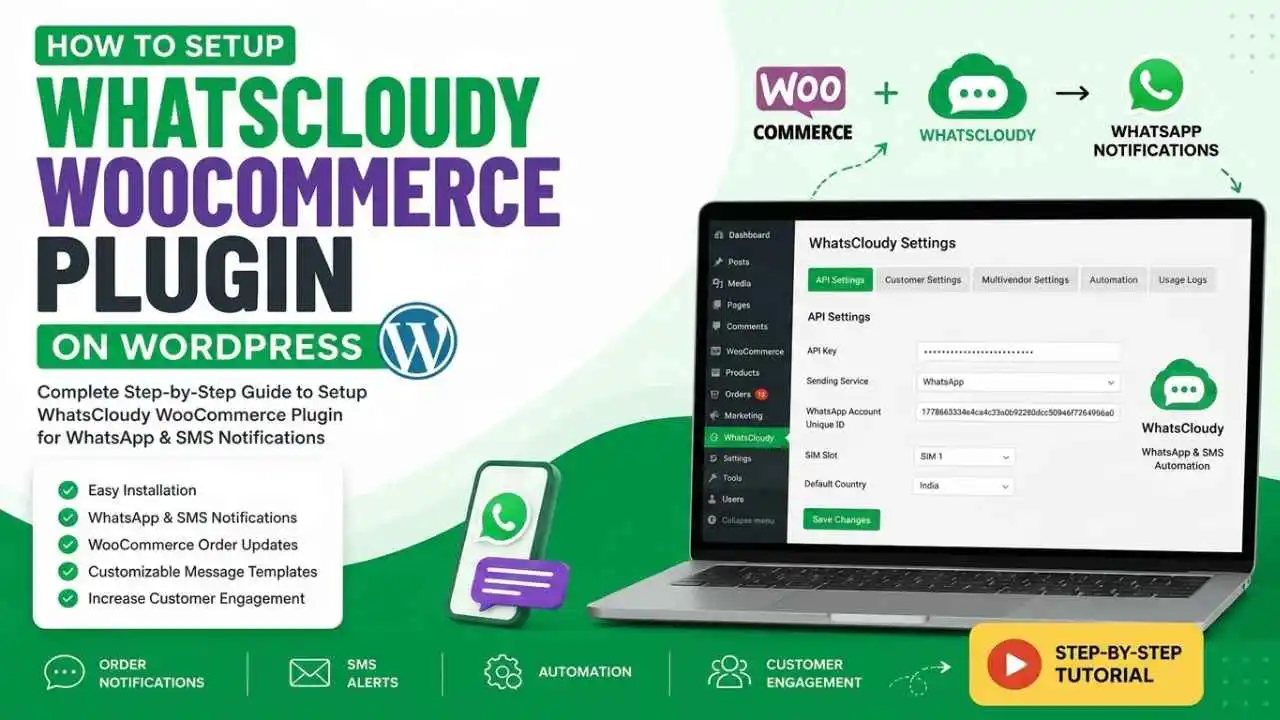
Running a WooCommerce store means keeping customers updated at every stage of their order journey. From order confirmation to delivery updates, timely notifications improve customer trust and increase engagement.
With the WhatsCloudy WooCommerce plugin, you can automate SMS and WhatsApp order notifications using dynamic shortcodes. This helps store owners send professional and personalized messages automatically.
In this guide, you’ll discover the best SMS templates for WooCommerce orders, along with shortcode examples and optimization tips for the WhatsCloudy plugin.
Why Use SMS Notifications for WooCommerce Orders?
SMS notifications are one of the fastest ways to communicate with customers. Compared to emails, SMS messages have significantly higher open rates and instant visibility.
Benefits of WooCommerce SMS Notifications
- Real-time order updates
- Better customer experience
- Increased trust & transparency
- Reduced support queries
- Higher customer engagement
- Faster communication than email
Using WhatsCloudy, you can automate all these notifications directly from your WooCommerce store.
What is WhatsCloudy?
WhatsCloudy is a cloud-based WhatsApp and SMS marketing platform designed for WooCommerce and online businesses.
It allows you to:
- Send bulk WhatsApp messages
- Automate order notifications
- Create campaign schedules
- Manage customer contacts
- Use WooCommerce order shortcodes
- Send personalized SMS alerts
How to Setup WhatsCloudy WooCommerce Plugin on WordPress
You can download WhatsCloudy WooCommerce Order Notifications plugin from ThemeVolt.
Step 1 – Download Plugin ZIP
Visit: Download
Download the plugin ZIP file.
Step 2 – Upload Plugin in WordPress
Go to:
WordPress Dashboard → Plugins → Add New PluginClick:
Upload Plugin
Now upload the downloaded ZIP file.
Then click:
Install Now → ActivateAfter activation, will appear inside WordPress
WordPress Dashboard → Settings → whatscloudyStep 3 – Login to WhatsCloudy
Open the official platform:
Login to your WhatsCloudy account.
After login, open:
Tools → API KeysClick on “Add Key”
ADD KEYEnter API Key Name
My WordPress WebsiteSelect API Permissions
SMS_SEND
WA_SEND

These permissions are required for sending WhatsApp and SMS messages.
Click Submit
SubmitCopy API Key
Click the:
Copy Icon4. Open WordPress Admin Panel
Open WordPress Dashboard → Settings → WhatsCloudyOpen the API Settings tabPaste the API Key into the API Key fieldSelect “WhatsApp” as the Sending ServiceCopy the WhatsApp Account Unique ID from the WhatsCloudy DashboardPaste it into the WhatsApp Account Unique ID field in the pluginClick Save ChangesEnable customer notifications from Customer SettingsAdd your SMS/WhatsApp message templatesPlace a test order to verify notifications are working properlyBest SMS Templates for WooCommerce Orders
1. Default Order Confirmation SMS
This message is sent immediately after a customer places an order.
Hello [billing_first_name],

Thank you for shopping with [shop_name] 🛍️

Your order #[order_id] has been placed successfully.

Amount:
[order_currency] [order_amount]

Status:
[order_status]

Visit:
[shop_url]
2. Pending Order SMS Template
Hi [billing_first_name],

Your order #[order_id] is currently pending confirmation.

Products:
[order_product_with_qty]

We will update you shortly.

- [shop_name]
3. Processing Order SMS Template
Hello [billing_first_name],

Good news! ✅
Your order #[order_id] is now being processed.

Products:
[order_product_with_qty]

Total:
[order_currency] [order_amount]

Thank you for choosing [shop_name].
4. Completed Order SMS Template
Hello [billing_first_name],

🎉 Your order #[order_id] has been completed successfully.

Thank you for shopping with [shop_name].

Visit Again:
[shop_url]
5. On-Hold Order SMS Template
Hi [billing_first_name],

Your order #[order_id] is currently on hold.

This may happen due to payment verification or stock confirmation.

Support:
[shop_email]
6. Failed Payment SMS Template
Hello [billing_first_name],

Unfortunately, payment for order #[order_id] failed ❌

Please try placing your order again.

Support:
[shop_email]
7. Refunded Order SMS Template
Hi [billing_first_name],

Your refund for order #[order_id] has been processed successfully 💸

Refund Amount:
[order_currency] [order_amount]

Thank you,
[shop_name]
8. Cancelled Order SMS Template
Hello [billing_first_name],

Your order #[order_id] has been canceled.

If you have any questions, contact us:
[shop_email]

- [shop_name]
9.COD Order Accepted SMS Template
Hello [billing_first_name],

Your Cash on Delivery order #[order_id] has been confirmed ✅

Payable Amount:
[order_currency] [order_amount]

Thank you for shopping with [shop_name].
Why Choose WhatsCloudy for WooCommerce SMS Automation?
WhatsCloudy offers advanced automation and marketing tools that help online stores scale faster.
Key Features
- WooCommerce Integration
- Bulk WhatsApp Messaging
- Automated SMS Notifications
- Campaign Scheduler
- Contact Management
- API Integration
- Multi-Device Support
- Group Tools & Extractors
- Real-Time Analytics


%20(119%20x%20239%20px)%20(1).png)